Getting Started
Before proceeding, ensure that your Yggdrasil installation is working correctly by running Python interactively inside the tests directory.
Attempt to import the yggdrasil package with from yggdrasil import * and you should be greeted with the following output:
               _             _ _
 _ _ ___ ___ _| |___ ___ ___|_| |
| | | . | . | . |  _| .'|_ -| | |
|_  |_  |_  |___|_| |__,|___|_|_|
|___|___|___|       v0.8.5
If so, then Yggdrasil is ready to use. If not, then you’ll need to troubleshoot your installation before proceeding.
First run: a simple example
In the tests directory, create a file called example.py. In this file, we’re going to write a simple script
that simulates a ball travelling along a parabolic path.
First, we import the necessary packages and we’ll use the MKS class, which is a convenient way to
define units of length (meters), mass (kilograms) and time (seconds). We also want to create the ball data structure, which
in this case is a Nodelist with a single node.
1from yggdrasil import *
2from Animation import AnimateScatter
3from Physics import ConstantGravity2d,Kinetics2d
4
5if __name__ == "__main__":
6    constants = MKS()
7    numNodes = 1
8    myNodeList = NodeList(numNodes)
Next, we want to create our physics packages, so we’ll define a gravity vector pointing downwards in 2d space, and then create the constant gravity package. In Yggdrasil, if you’re using particles as simple hard spheres, it’s a good idea to also construct the Kinetics package as that will ensure that the mass, radius, and velocity fields are created and assigned to your Nodelist. Then we place both physics packages into a convenient Python list.
Note
While mixing dimensionality is possible within Yggdrasil, it’s not recommended unless you know what you’re doing, so in this case, we’ll stick to 2d space for everything.
 9    gravVec = Vector2d(0, -9.8)
10
11    constantGravity = ConstantGravity2d(myNodeList, constants, gravVec)
12    kinetics        = Kinetics2d(myNodeList,constants)
13    packages        = [constantGravity,kinetics]
Now we create our integrator, and we’ll use RK4 for this example. We’ll also set the dtmin to some small value. We’ll print to screen the integrator object’s signature just to verify that it was created successfully.
15    integrator  = RungeKutta4Integrator2d(packages=packages, dtmin=0.01, verbose=False)
16    print(integrator)
$ <Integrators.RungeKutta4Integrator2d object at 0x7f5770ad3770>
To create our intial conditions, we’ll access the fields of our Nodelist and set the values of the 0th node to some initial state, in this case, a radius of 1cm and mass of 1kg. Then we’ll set the velocity to some initial value pointing up and to the right and set the position of the ball to the origin.
18    rad     = myNodeList.radius
19    mass    = myNodeList.mass
20    vel     = myNodeList.velocity
21    pos     = myNodeList.position
22
23    mass[0] = 1
24    rad[0] = 0.01
25    vel[0] = Vector2d(5,5)
26    pos[0] = Vector2d(0,0)
Finally, we create our controller object and assign the integrator to it. Then we call the animate function on the controller, passing in our positions field and a frame count of 10 frames with an interval of 50 milliseconds. We’ll also set the boundaries of our animation to be (-1,6,-1,1.4). Note that these are not problem boundaries, but rather the bounding box of the animation window which has no effect on the simulation.
28    controller = Controller(integrator=integrator, periodicWork=[], statStep=1)
29
30    bounds = (-1, 6, -1, 1.4)
31    AnimateScatter(bounds, stepper=controller, positions=pos, frames=10, interval=50)
We can understand these chosen boundaries by solving the simple kinematic problem of an object traveling under the influence of Earth gravity. If we solve for the time it takes to reach apogee (where vertical velocity is zero), and plug that time into the equation for motion, we find an apogee height of about 1.3 meters, hence setting the maximum y-value of our animation boundaries to 1.4.
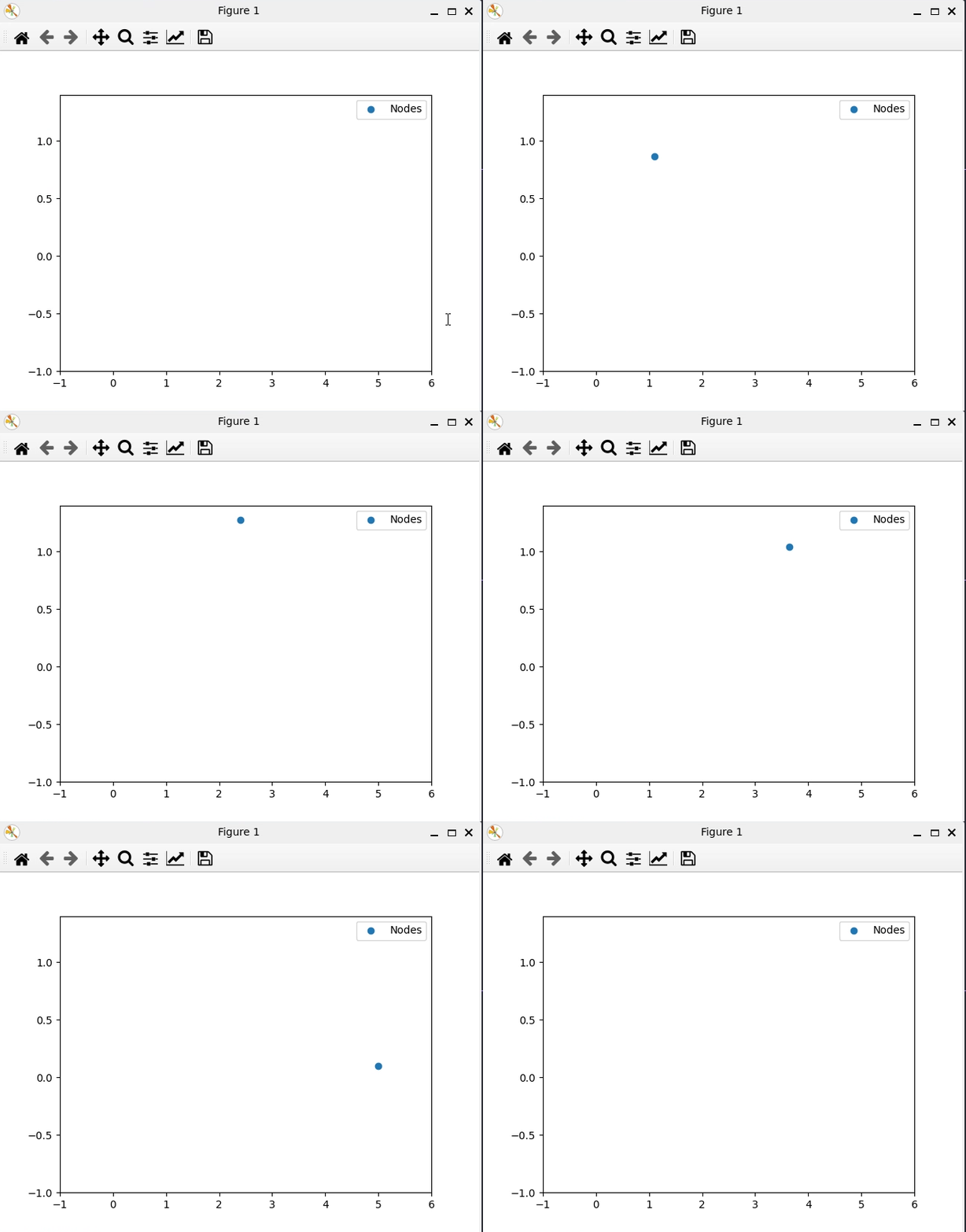
If all goes well, when you run the script with python3 example.py in your command prompt, you should see an animation of the object’s motion
like so:
Simply close the animation window to quit Yggdrasil. At this point, I encourage you to increase the total number of nodes and set their initial conditions with a loop over numNodes. Try giving each node slightly different initial conditions (and positions since they are kinetic and so will collide with one another) and see how the animation changes!